This is the wiki for products made by Fractal Audio Systems, maintained by members of the community.
Difference between revisions of "FASLINK"
Jump to navigation
Jump to search
m (moved Connections: FASLINK to FASLINK) |
|||
| Line 7: | Line 7: | ||
FASLINK is a proprietary Fractal Audio communications link between the Axe-Fx II and MFC-101, featuring bi-directional MIDI and power over a standard XLR microphone cable. Cable runs of hundreds of feet are possible. XLR cables are more flexible and robust than Ethernet cables. | FASLINK is a proprietary Fractal Audio communications link between the Axe-Fx II and MFC-101, featuring bi-directional MIDI and power over a standard XLR microphone cable. Cable runs of hundreds of feet are possible. XLR cables are more flexible and robust than Ethernet cables. | ||
| − | =FASLINK | + | =Hardware support for FASLINK= |
* Axe-Fx II XL/XL+ and MFC-101 Mark III models have built-in FASLINK support. | * Axe-Fx II XL/XL+ and MFC-101 Mark III models have built-in FASLINK support. | ||
* Older Axe-Fx II models (Mark I, Mark II) and MFC-101 models (Mark I, Mark II) require FASLINK adapters XA-1 and XA-2 to convert between XLR and Ethernet/Ethercon. These adapters are "active" ([http://forum.fractalaudio.com/axe-fx-ii-discussion/95125-xa-1-faslink-adapter.html#post1139249 source]). They can be bought directly from [http://shop.fractalaudio.com/ Fractal Audio's shop]. | * Older Axe-Fx II models (Mark I, Mark II) and MFC-101 models (Mark I, Mark II) require FASLINK adapters XA-1 and XA-2 to convert between XLR and Ethernet/Ethercon. These adapters are "active" ([http://forum.fractalaudio.com/axe-fx-ii-discussion/95125-xa-1-faslink-adapter.html#post1139249 source]). They can be bought directly from [http://shop.fractalaudio.com/ Fractal Audio's shop]. | ||
| Line 17: | Line 17: | ||
[[file:FASLINK_adapters.png|150px|link=]] | [[file:FASLINK_adapters.png|150px|link=]] | ||
| − | = | + | =Set up FASLINK= |
* Axe-Fx II: turn on FASLINK in the I/O menu. | * Axe-Fx II: turn on FASLINK in the I/O menu. | ||
* MFC-101: select the correct port in the MFC settings. Do not connect a power supply to the MFC-101 when using FASLINK. | * MFC-101: select the correct port in the MFC settings. Do not connect a power supply to the MFC-101 when using FASLINK. | ||
| − | = | + | [http://www.fractalaudio.com/downloads/manuals/faslink/FASLINK-Adapters-Setup-Guide.pdf More information in the FASLINK Setup Guide.] |
| + | |||
| + | =FASLINK protection= | ||
"The FASLINK port is protected against shorts." [http://forum.fractalaudio.com/threads/xl-lockup-when-faulty-faslink-xlr-is-connected.105500/#post-1262170 source] | "The FASLINK port is protected against shorts." [http://forum.fractalaudio.com/threads/xl-lockup-when-faulty-faslink-xlr-is-connected.105500/#post-1262170 source] | ||
=More information= | =More information= | ||
| − | + | [http://forum.fractalaudio.com/news/84908-faslink%99-adapters-here.html Introduction on the user forum] | |
| − | |||
[[category:Axe-Fx]] | [[category:Axe-Fx]] | ||
[[category:MIDI]] | [[category:MIDI]] | ||
[[category:Connecting]] | [[category:Connecting]] | ||
Revision as of 10:31, 14 April 2017
The information on this page supplements the official manuals.
Contents
What's FASLINK?
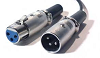
FASLINK is a proprietary Fractal Audio communications link between the Axe-Fx II and MFC-101, featuring bi-directional MIDI and power over a standard XLR microphone cable. Cable runs of hundreds of feet are possible. XLR cables are more flexible and robust than Ethernet cables.
Hardware support for FASLINK
- Axe-Fx II XL/XL+ and MFC-101 Mark III models have built-in FASLINK support.
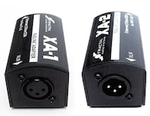
- Older Axe-Fx II models (Mark I, Mark II) and MFC-101 models (Mark I, Mark II) require FASLINK adapters XA-1 and XA-2 to convert between XLR and Ethernet/Ethercon. These adapters are "active" (source). They can be bought directly from Fractal Audio's shop.


Set up FASLINK
- Axe-Fx II: turn on FASLINK in the I/O menu.
- MFC-101: select the correct port in the MFC settings. Do not connect a power supply to the MFC-101 when using FASLINK.
More information in the FASLINK Setup Guide.
FASLINK protection
"The FASLINK port is protected against shorts." source
